WordPress Performance Series #1
As lead developer at Media Proper, I oversee a development process that we use to rapidly build WordPress sites that are both highly customized and performant. It’s a process that we’re fine-tuning with each project and major WordPress core update.
In this series, I’ll share our our most effective theme development practices for optimizing WordPress performance, how we arrived at them, and how we expect to refine them further.
How do we measure website speed? Our team uses Google Lighthouse to audit performance, both in Chrome and with the Firefox extension . We also use other tools to assess our hosting environment and security practices.
It’s important to note that we aren’t building classic WordPress sites. Most of our optimizations are rooted in the continuous improvements in the CMS framework for full-site editing (FSE) sites, also known as block themes.
Advantages of Block Themes for WordPress Developers
Not everyone got on board with WordPress’s Gutenberg development direction, and I’m still surprised when folks give block themes the side eye. It’s true that in some ways it’s been like learning a different platform. It’s also true that the block theme landscape often shifted even as we were feeling our way through it. But the result was worth all that. We’ve been thrilled with the performance gains we’ve realized by switching to block themes.
With a leaner codebase, our block themes require less time for debugging and structuring code. The result: faster, more secure sites that are easier for us and clients to maintain and less prone to breaking from core upgrades, all without needing to hire additional labor. That’s been huge for us.
What were we doing before?
Prior to Media Proper adopting FSE, our developer team often spent days pre-launch just pulling the performance score up to something respectable. By inlining critical CSS, fine-tuning image srcset and sizes attributes, and conditionally enqueuing CSS files, we could achieve higher Lighthouse scores, but it took skill, more code, and time.
What is “inline CSS”? Inlining CSS is a strategy to speed up page loading by including CSS directly in the HTML (usually in <head> ) rather than linking to a separate .css file.
Those “classic”-themed sites were not just heavy on CSS and PHP, they also couldn’t leverage the latest enhancements built into WordPress.
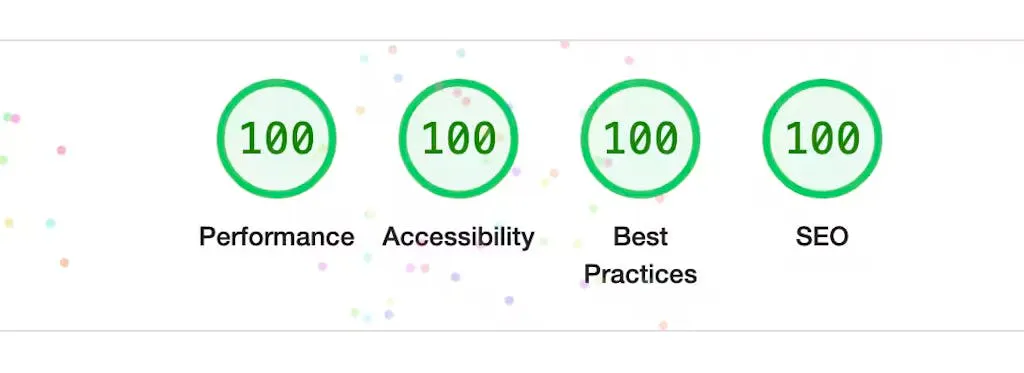
Achieving the perfect Google Lighthouse score with FSE Starter Themes
Our starter theme scores the Lighthouse quadfecta (that magical row of 100s) right out of the box. After adding content, styling, fonts, and plugins, we’re normally looking at three centaines and a performance score between 90 and 95.
No more are the days spent combing the site over for performance problems. We just make some adjustments and launch. Without the old drama. It’s nice.
So what’s our first key site development practice?
Leveraging theme.json for Efficient CSS Styling
Styling blocks using WordPress’s wacky JSON implementation of CSS is without a doubt unsatisfying work. (Other priorities won out over the developer experience in this case.) Despite its drawbacks, theme.json opens theme styling to the block editor and to efficient inclusion on the front end.
I much prefer writing Sass and wish that WordPress had given us a way to translate Sass code or compiled CSS directly into the mechanism that consumes theme.json. It’s also a shame that in handling styles this way, theme.json will never fully cover all of the CSS spec and always lag behind its improvements.
WordPress inlines so much CSS that prior to loading the theme’s style.css, a page’s presentation already appears close to its intended design. Because of this, I’ve sometimes failed to immediately notice CSS compilation issues (i.e., an empty style.css file). Of course, the benefit is that most of a page’s styles are applied instantly.
To understand what I mean, take a look at the following screenshot of the Media Proper About page. On the left is correct with both inline styles and .css files; on the right, a CSS error preventing stylesheets from compiling and loading.

Overcoming theme.json’s unfriendliness
In short, to make working with theme.json more developer-friendly, we:
- Compile theme.json from separate files to avoid navigating a single, lengthy file.
- Configure Visual Studio Code to validate theme.json using the WordPress JSON schema.
- Use block-specific stylesheets for CSS not supported by theme.json, automatically enqueued and inlined.
- Enable a WordPress setting to load each block’s CSS only if the block is rendered on the page.
Let’s unpack these.
Split theme.json into component JSON files
In development, I’ve found it handy to compile the theme.json from separate files, in much the same way that we used to aggregate dozens of CSS files into style.css. Splitting theme.json into component files lets me pull up any core block’s styling without getting lost in the scrolly mess of the 1200-odd lines of theme.json. Our build system’s compile task aggregates the files and strips out any comments to produce the final theme.json.
Configure Visual Studio Code to validate theme.json
I’ve set up my workspace settings to have VSCode pull the JSON schema from WordPress for the theme.json. As a result, it autocompletes and defines keys and flags up unsupported stuff.
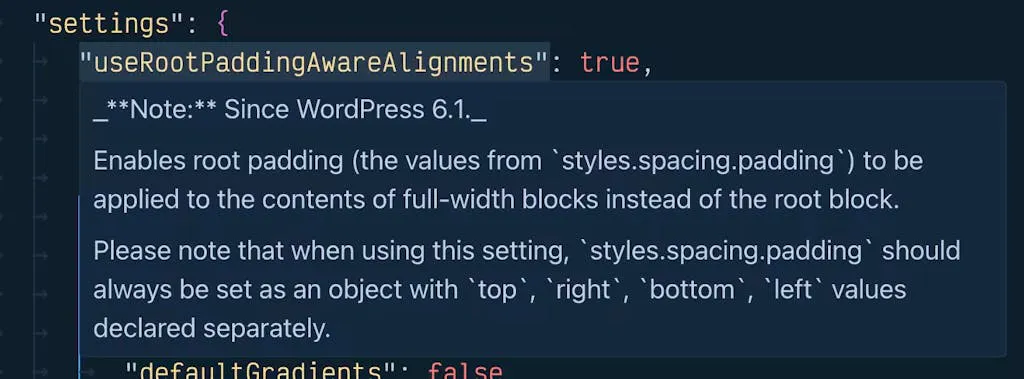
To link the theme.json schema into VSCode, just add the record to the json.schemas key in the workspace or user settings.json file.
"json.schemas": [
	...
	{
		"fileMatch": [
			"theme.json",
			"src/json/*json*",
		],
		"url": "https://schemas.wp.org/trunk/theme.json"
	},
	...
],
What about the CSS that theme.json doesn’t support , like pseudo-classes and media queries? And third-party block styles? And the maintainability and simplicity of Sass?
We’ve set up our theme to use block-specific stylesheets. Two benefits to this approach: styles will also load in the block editor, and can be automatically inlined. Further, they’re included only on pages where the block is present.
Watch out for inconsistent HTML between the block editor and front end! Differences in the HTML structure and classnames between the block editor and front end sometimes make it tricky to use the same CSS in both places. When I can’t finesse my CSS selectors, I use a separate stylesheet just for the block editor.
To enqueue a block-specific style, use the wp_enqueue_block_style function hooked to the init action. Here’s an example for the button block:
wp_enqueue_block_style('core/button', array(
	'handle' => 'theme-button-styles',
	'src'    => get_theme_file_uri( 'assets/css/blocks/button.css' ),
	'path'    => get_theme_file_path( 'assets/css/blocks/button.css' ),
));
For each block type , you do this? No. That would be cumbersome, error-prone, and slow. So we’ve automated it with a foreach loop over a path glob. With that automation in place, we style a block simply by producing a CSS file located, according to our theme structure, at assets/css/blocks/core/[block-name].css . Our init-hook function will pick up and associate it with whatever block it’s named for. Easy and fast.
The source Sass file for a button style could look like this:
:not([class*="is-style-"]) > .wp-element-button {
	font-size: max(19px, 1em);
	outline: transparent solid 1px;
	transition-property: all;

	&:focus-visible {
		outline: var(--wp--preset--color--focus) solid 1.5px;
		outline-offset: 2px;
	}

	&:hover {
		box-shadow: var(--wp--preset--shadow--light);
	}
}
So how about loading each block’s CSS only if the block is rendered on the page?
This is a WordPress setting that must be opted into using a filter hook in functions.php.
add_filter('should_load_separate_core_block_assets', '__return_true' );There’s a detailed explanation of what happens with this setting enabled on the WordPress Core blog.
It makes sense to separate block assets, rather than loading all of them at once, when you want initial load time to be low. Loading (and browser caching) core block styles up front will slow a site on its first load but navigating around that site would be marginally quicker.
Looking Ahead: WordPress Style Engine Development
We’re keeping an eye on WordPress’s Style Engine development to see how it may impact them.json. Particularly, we’re wondering:
- Will theme.json support pseudo-classes and responsive CSS?
- Will a special theme folder for block styles be implemented, saving the trouble of using the wp_enqueue_block_style function?
- Will inlining styles work differently?
WordPress Performance Series
What’s next?
Stay tuned for more tips on improving WordPress performance and theme development, including:
- WordPress plugins for real performance gains.
- Alternatives to intrusive and bloated (yet popular!) plugins.
- Balancing maintenance, development speed, and performance.
- Effective use of page, query, and object caching.
- Staying current with WordPress enhancements, given their lengthy list of components and fast-paced development cycle.