
If you’re importing products into WooCommerce, you’re likely going to be using WP All Import . Unfortunately, this plugin is anything but simple to use. If you only have a handful of products, you may be better off recreating the product listings from scratch.
But, for larger storefronts, starting from scratch isn’t a viable option. That’s why we’ve created this article in an attempt to make the process easier for those going down the WP All Import path.
What You’ll Need
- WordPress
- WooCommerce
- WP All Import
- Google Sheets or another spreadsheet app
Start with a Spreadsheet
The first step is to make a product spreadsheet. For this article, we’ll be using Google Sheets. But, Microsoft Excel works in basically the same way, so you can still follow along.
On Column Names
One important detail to keep in mind when setting up your spreadsheet is that changing the column headings can break future imports. Once you’ve labeled your columns, select the header row and then navigate to Data > Protect Sheets and Ranges . This will prevent the headings from being altered in the future.
Use lowercase. During the import, your column names will be translated to lowercase and any spaces will be removed. You might as well make them easy to read in your spreadsheet.
What Fields Do We Need?
Some headings (fields) you may want (or need) to include in your spreadsheet are as follows.
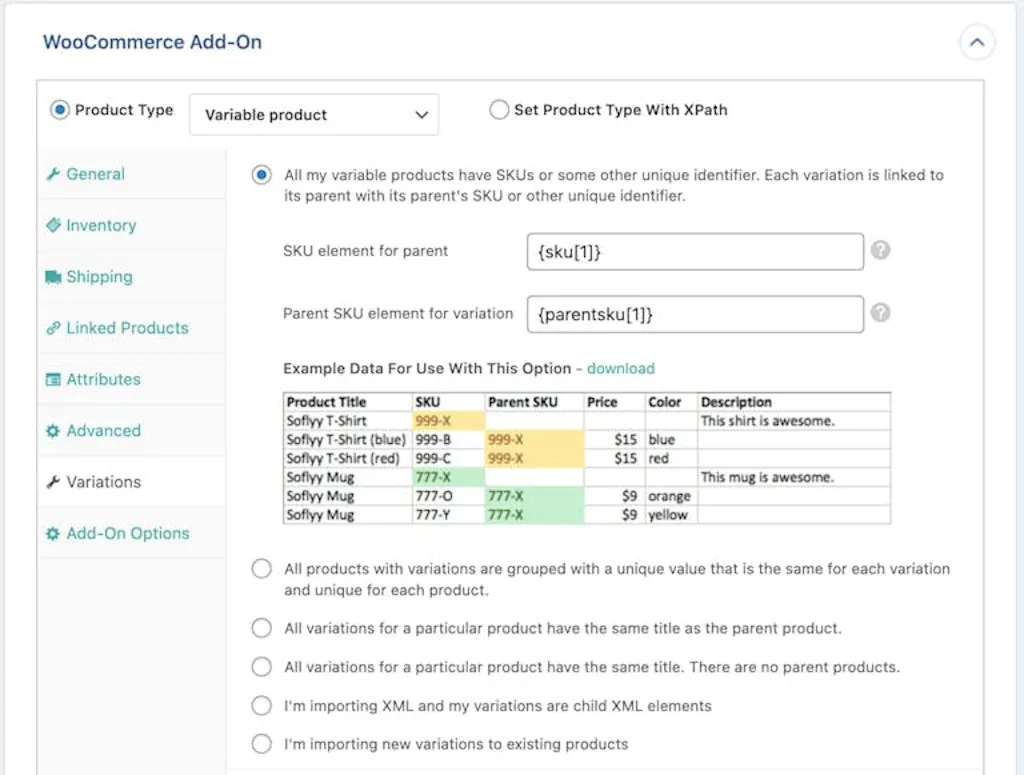
Product Title
The title of the product. For variable products, this is what displays in the catalog. The variation title is what normally displays in the cart and order table.
SKU
A unique item number. WooCommerce uses this, and we will tell WP All Import to use this number for the internal product identification it uses when updating products.
Parent SKU
This is used for product variations. The parent “product” doesn’t need to be a real product because it cannot be added to the cart without choosing a variation or combination of attributes. This column will be used for the product name, description, and catalog image. The parent product column must always come before the product variations.
Freeze your columns.
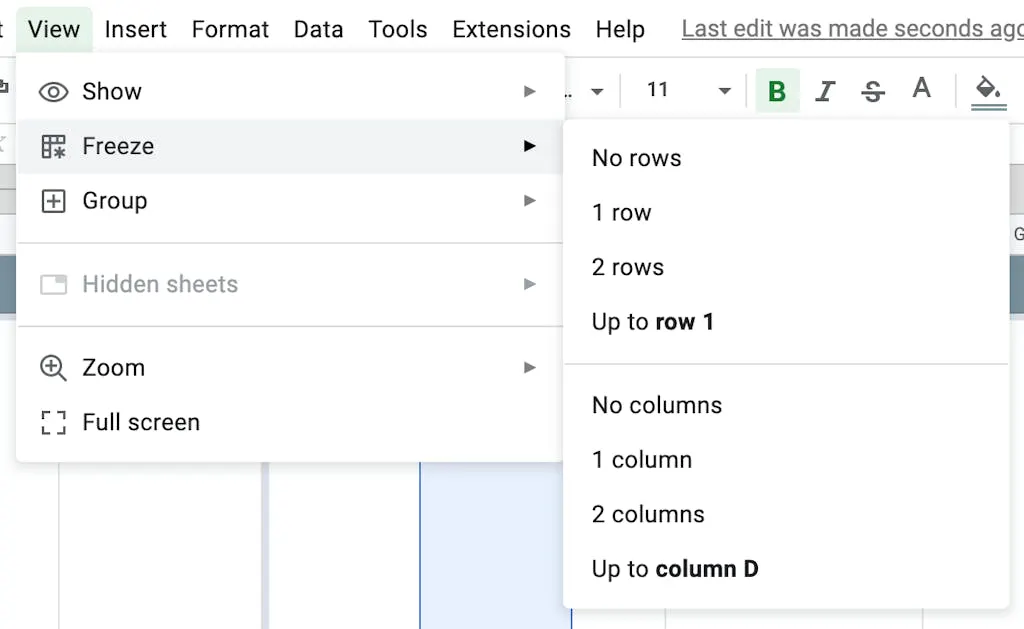
At this point, it may be a good idea to “freeze” the columns that you have created so that when you scroll left/right, you always see the Product Title, SKU, and Parent SKU. To do this, select the rightmost column you want to freeze and then navigate to View > Freeze > Up to column [letter] .
Convenient Placement of Some Fields
=JOIN("-", IF(B2 = "", B2, C2), B2)C2 is the Parent SKU and B2 is the SKU.
ID
It’s a good idea to generate a product ID in case you need to sort the sheet. You’ll want to have a way to get back to the right sort order for parent products and their variations. Most of the time, a Parent SKU will be the base, with the variations appending some combination of characters to it.
=B2B2 is the SKU.
Image
We use a naming convention for product images: {sku}.jpeg , {sku}_1.jpeg , {sku}_2.jpeg , and so on. (Or .png for PNGs.) You can simply depend on the SKU field for this. However, there are cases where you need to point to a different SKU or image name. (For instance, a parent SKU may not have any image file. You might want to choose one of the variation SKUs.)
So, we set this field to a formula, which can be overridden in those cases.
Featured
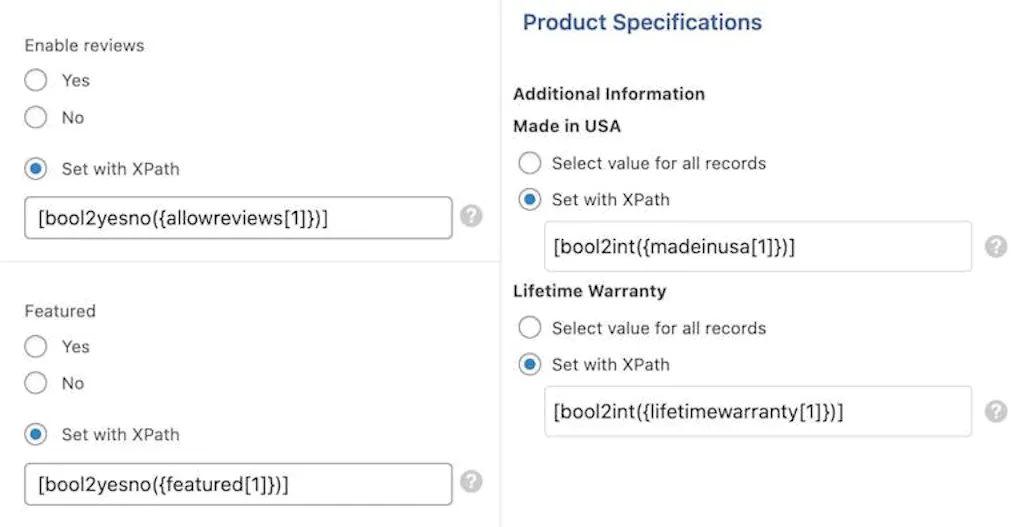
Not all stores do anything special with the Featured flag. WP All Import is looking for a Yes / No in this column.
Boolean cell data. Some cells need either a Yes or No value. You may use a checkbox, but you will need a special PHP function to convert that True / False value to Yes / No . Otherwise, it’ll silently import as No , regardless of whether the box is checked or not.
Inventory Fields
In Stock
Since it’s rare to manage inventory in WooCommerce, it can be useful to have a column to flag products as out of stock. Putting this column toward the left on the sheet makes it easier to find when needed.
Use a checkbox. Again, this can be a checkbox field. But, it will require a special PHP function in the Import Template.
Price
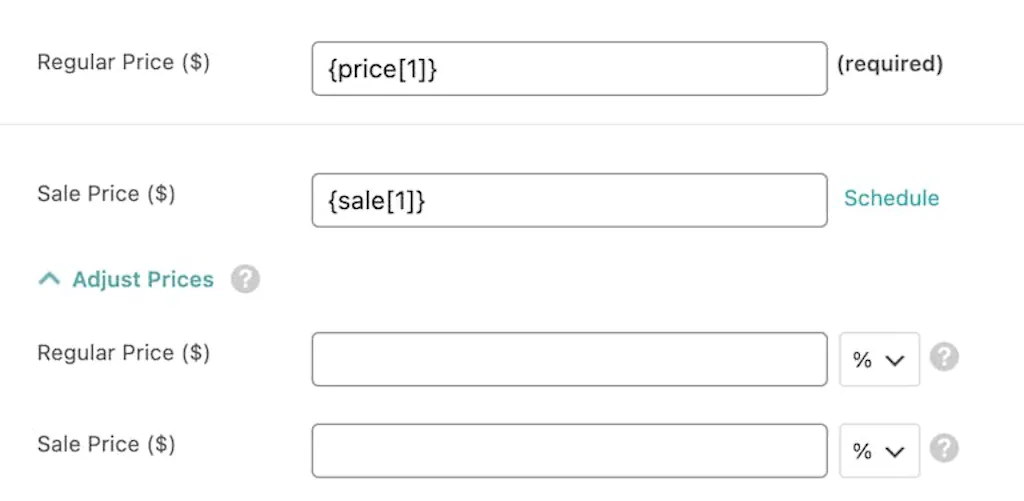
The price of the product. Products without prices will not be sellable. Even free products need a price of $0. The import process will strip out any currency symbol.
Sale Price
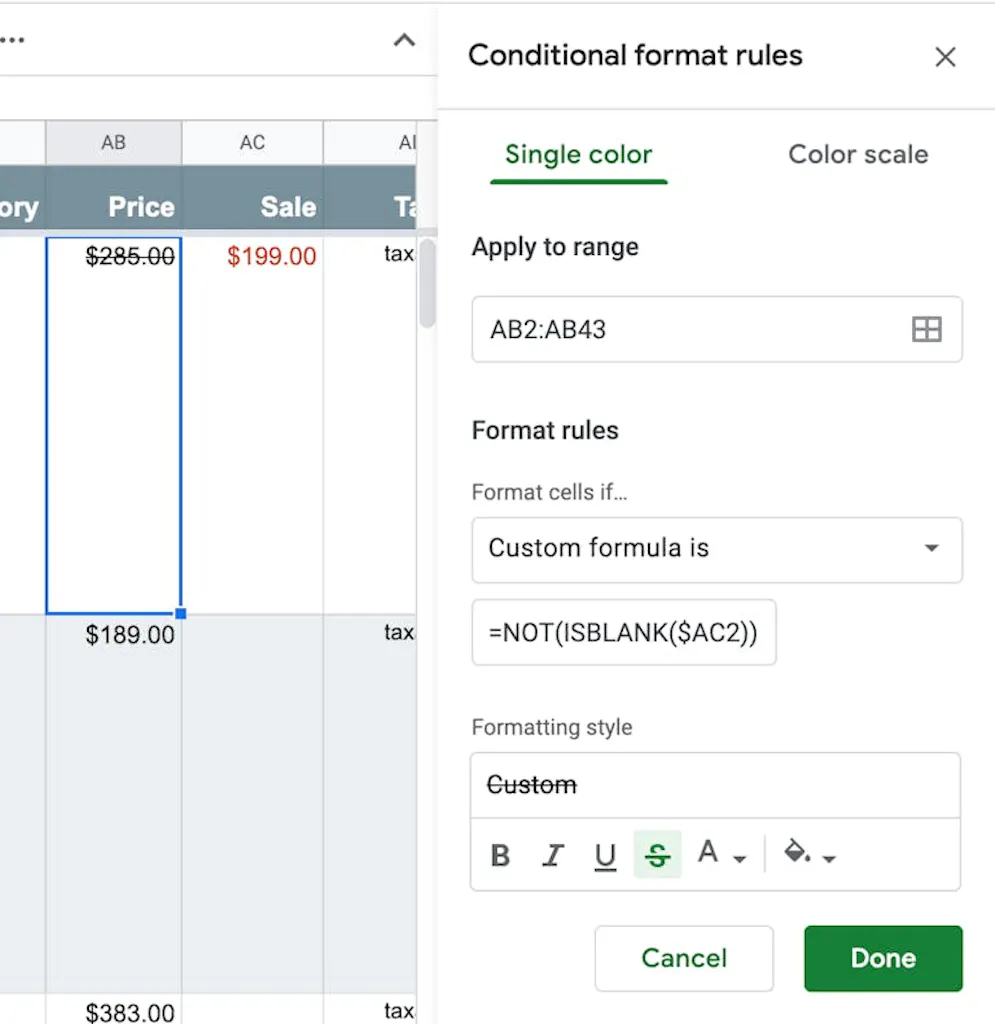
An easy way to mark items on sale is to have a column for Sale Price. Formatting this column with red text will make it easier to differentiate. Additionally, you can add conditional formatting rules to the Price column based on the value in the Sale Price column.
Percentage discount. You can also set up a dynamic sale price, reducing the regular price by a dollar amount or percentage. These are set up in the Import Template.
Shipping Fields
In order to calculate shipping, each product needs to have Length, Width, Height, and Weight measurements. Products that lack these values will not be purchasable. WooCommerce can set metric or imperial measurements. Make sure you use the correct units here.
Weight (oz.)
WooCommerce expects Weight in pounds. However, it makes more sense for many products to use ounces. So, we include a column for weight in ounces, as well as an auto-calculated column for weight in pounds.
=V2/16V2 is the Weight (oz.) column.
Weight (lbs.)
It’s a good idea to lock this column if you are using the auto-calculation method so that it cannot be changed manually.
Product Catalog Fields
Description
The full product description. You can use HTML here.
Short Description
A shortened product description. To give an idea of the length, the import field is only a single-line text input. This text might appear in the catalog or related products loops, so you don’t want it to be very long at all.
Categories
You can list categories separated by new lines or commas. For subcategories, use Parent > Subcategory . There is an import option to have the product appear in both the parent category and subcategory, or only in the subcategory, so you do not need to do Parent, Parent > Subcategory .
Categories will be automatically created if they are not already present.
Tags
Product tags can be listed by slug or title.
Cross-Sells / Up-Sells
Cross-sells show up in the Related Products loop. Up-sells show up on the Cart screen. In these columns, list product SKUs or Titles, separated by commas.
Order
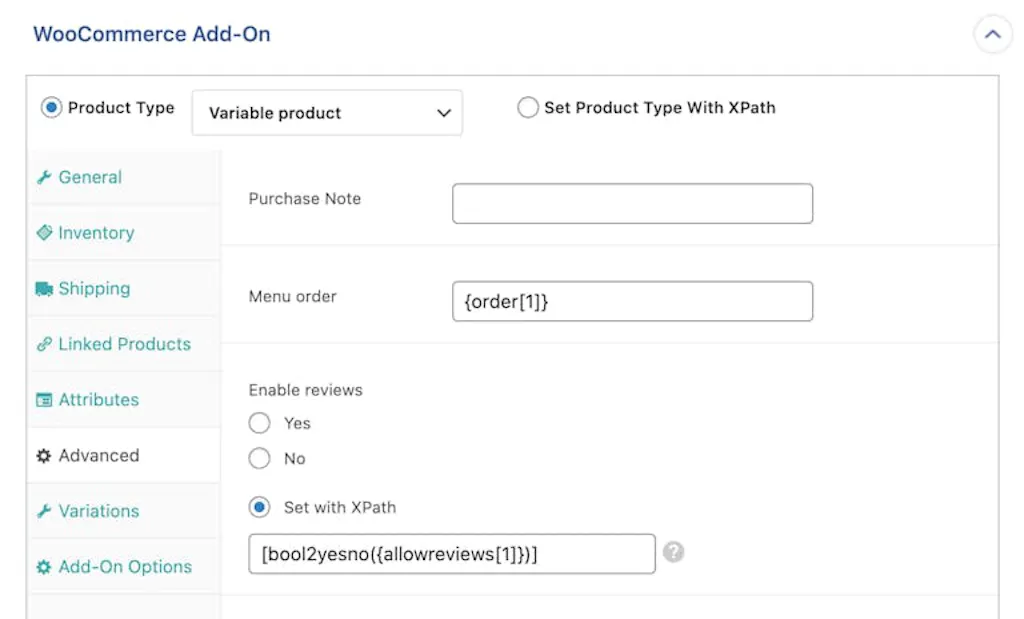
If you want absolute control over how the products appear in the catalog, you will require a column for Menu Order. This will be a number. Use a default value like 10 . Then, assign a lower or higher number to products you want to appear before or after the default product.
Product Variation Fields
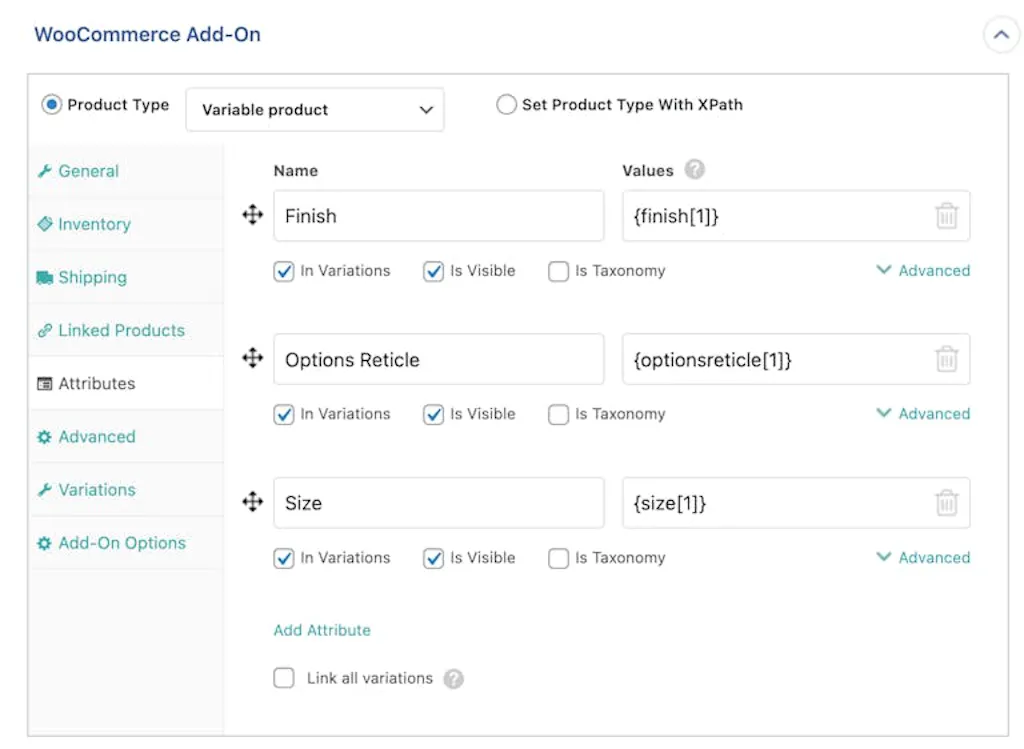
Variation Attributes
Products with Parent SKUs (variable products) should have at least one attribute column with values in it. Examples of product variation attributes include Size , Style , Dimensions , etc.
Each attribute you need for a product needs its own column in the spreadsheet. And it needs to be set up in the Import Template.
Provide only relevant attributes. If a variable product has blank cells in a given attribute column, then that attribute will not apply to that variable product.
Using Custom Fields
If you have set up any custom fields, which your theme template might cause to appear in the Additional Information tab, you will need to have some more columns for these fields.
Simple Fields
Typical simple fields might include:
- Made in the USA (checkbox)
- Lifetime Warranty (checkbox)
- Country of Origin (text)
- Assembly Required (checkbox)
ACF Booleans. Advanced Custom Fields True / False fields may be looking for 1 or 0 . For checkboxes, you will need a special PHP function to translate the True / False value to 1 or 0 .
Grouped Fields
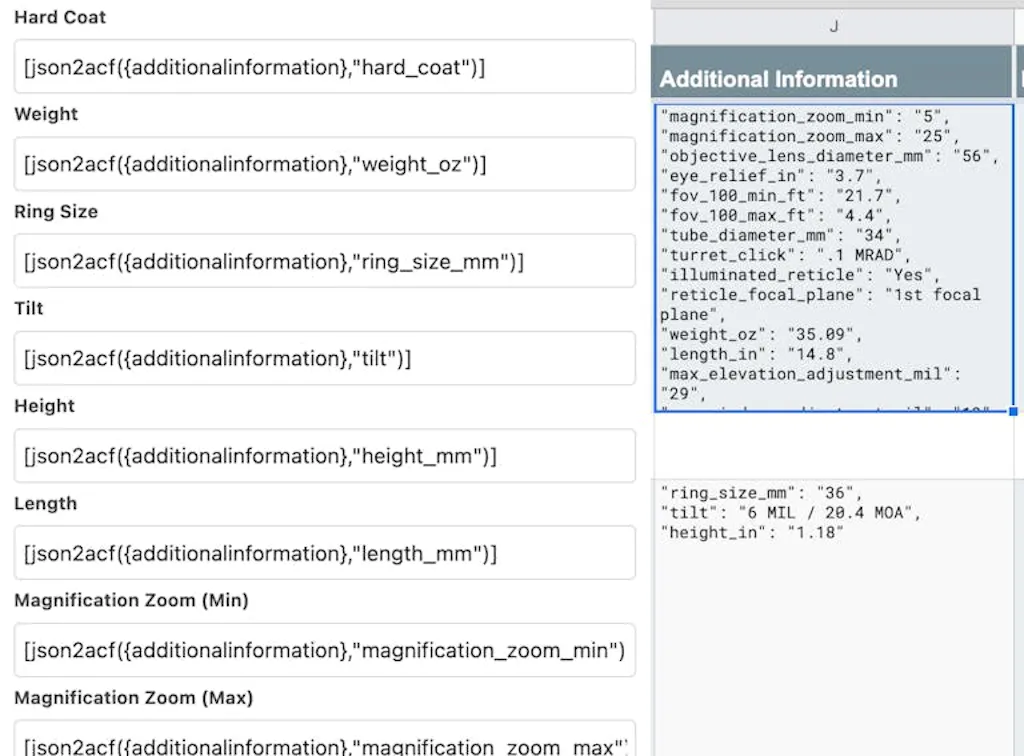
If you’ve set up a field group for the Additional Information tab, you can use a JSON record to populate those fields. You should only choose this level of complexity if you have dozens of fields and don’t want to add a lot of columns to your spreadsheet.
"magnification_zoom_min": "5",
"magnification_zoom_max": "25",
"objective_lens_diameter_mm": "56",
"eye_relief_in": "3.7",
"fov_100_min_ft": "21.7",
"fov_100_max_ft": "4.4",
"tube_diameter_mm": "34",
"turret_click": ".1 MRAD",
"illuminated_reticle": "Yes",
"reticle_focal_plane": "1st focal plane",
"weight_oz": "35.09",
"length_in": "14.8",
"max_elevation_adjustment_mil": "29",
"max_windage_adjustment_mil": "13"
With the custom field group set up, you can use a PHP function to get the data into the correct fields. The function also adds the JSON brackets ( {…} ) and removes any trailing commas, which will cause the JSON to fail.
Place this function at the bottom of the Import Template under Function Editor:
function json2acf($json, $field){
	// Enclose in curly brackets if not present.
	if( '}' !== substr($json, -1) ) $json .= '}';
	if( '{' !== substr($json, 0, 1) ) $json = '{' . $json;

	// No trailing commas.
	$json = str_replace(['", }','",}'], '" }', $json);

	$arr = json_decode($json, true);
	if(!empty($arr[$field])) return $arr[$field];
}
Other Fields
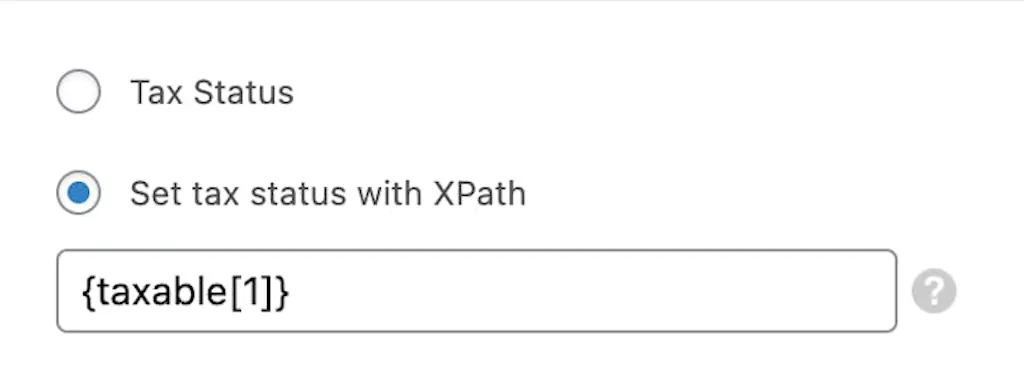
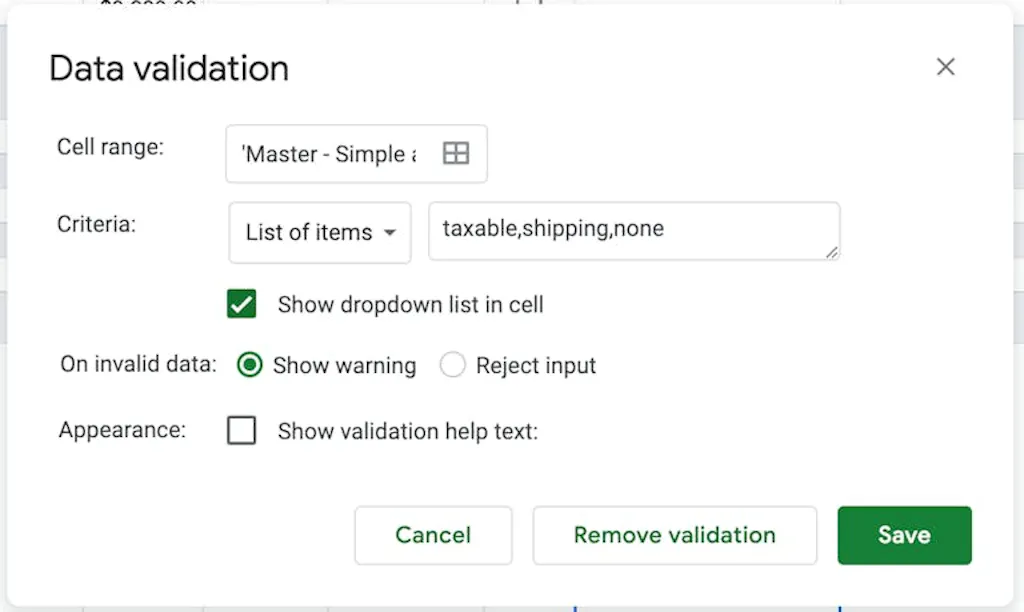
Taxable
Some stores will have products with differing tax statuses. The choices are usually limited to three options: Taxable, Shipping, and None . Create a dropdown for these choices by navigating to Data > Data validation.
Allow Reviews
A shop that allows reviews may nevertheless want to limit reviews to only certain products.
Boolean conversion. This field is looking for a Yes / No , but could use a checkbox with a special PHP function in the Import Template.
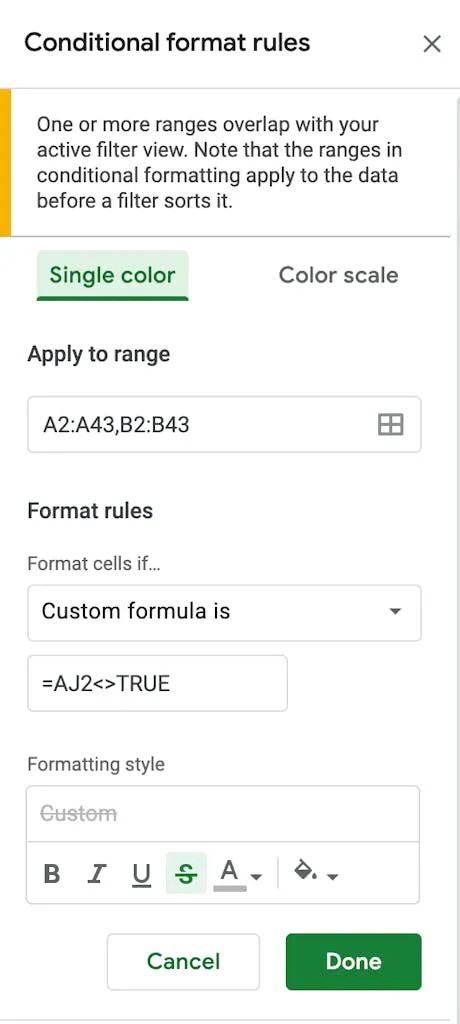
Active
If you want to be able to deactivate products easily, consider adding a checkbox Active column. To make it clear that a product is deactivated, you can add conditional formatting to the SKU and/or Title columns.
Import only “active” products. You will need to set the Import Settings to ignore rows that are not marked as active.
PHP Functions to Translate Checkboxes
Under the hood, checkboxes are True / False values. When using checkboxes in the spreadsheet, you need to translate the values because the Import Template fields are usually looking for either Yes / No , or 1 / 0 .
For custom PHP functions, use the code field at the bottom of the Import Template screen under Function Editor.
function bool2int($val){
	$val = filter_var($val, FILTER_VALIDATE_BOOLEAN);
	return intval($val);
}
function bool2yesno($val){
$val = filter_var($val, FILTER_VALIDATE_BOOLEAN);
return (true === $val) ? 'yes' : 'no';
}Creating a New Import
Now that your product spreadsheet is set up, follow these steps to set up a new import from scratch.
- Export your spreadsheet to CSV by navigating to File > Download > Comma separated values .
- Choose New Import under the “All Import” menu.
- Choose Upload a File. Upload the CSV file.
- Import data from this file into… New Items.
- Create New: WooCommerce Products.
- Continue to Step 2.
- At this point, you should see a table that correctly corresponds to your spreadsheet. The column headers will be displayed vertically in the first column and translated to lowercase and stripped of any spaces or special characters.
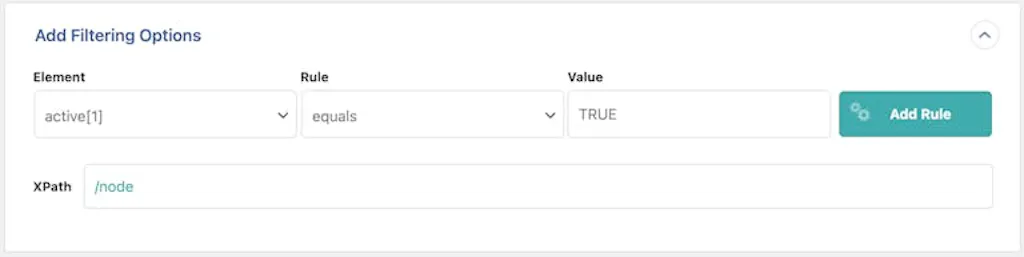
- If you want to filter your data (for example, if you have an Active column with certain products enabled/disabled), expand the “Add Filtering Options” panel. The Element will be your Active column ( active[1] ), the Rule will be equals , and the value will be TRUE . You need to do two things before this will actually apply. First, Add Rule . Second, Apply Filters to XPath . The XPath text input should change from /node to /node[active[1] = "TRUE"] .
- Continue to Step 3.
- Drag or type the field names into the text inputs on the template. Hint: a field called producttitle will drag over as {producttitle[1]} .
- For images, you need to list out the possibilities under your chosen naming convention. If a product has 10 images you would need to list up to {image[1]}_10.jpeg using our naming convention. If a product has an image that’s a PNG or GIF, you will need to duplicate your list with those extensions. Your image list could end up looking like this: {image[1]}.jpeg {image[1]}_1.jpeg {image[1]}_2.jpeg {image[1]}_3.jpeg {image[1]}_4.jpeg {image[1]}_5.jpeg {image[1]}_6.jpeg {image[1]}_7.jpeg {image[1]}_8.jpeg {image[1]}_9.jpeg {image[1]}_10.jpeg {image[1]}.gif {image[1]}_1.gif {image[1]}_2.gif {image[1]}_3.gif {image[1]}_4.gif {image[1]}_5.gif {image[1]}_6.gif {image[1]}_7.gif {image[1]}_8.gif {image[1]}_9.gif {image[1]}_10.gif
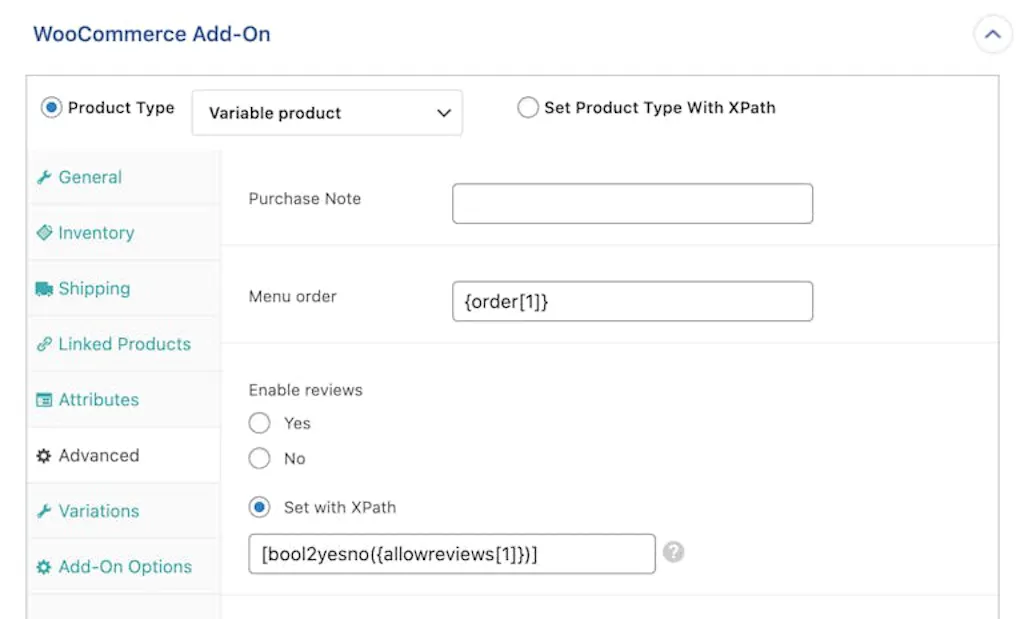
- If you are using a Menu Order column, you can find this in two places. Use the one under the WooCommerce Add-On metabox.
- Don’t forget to paste any necessary PHP functions into the Function Editor text area.
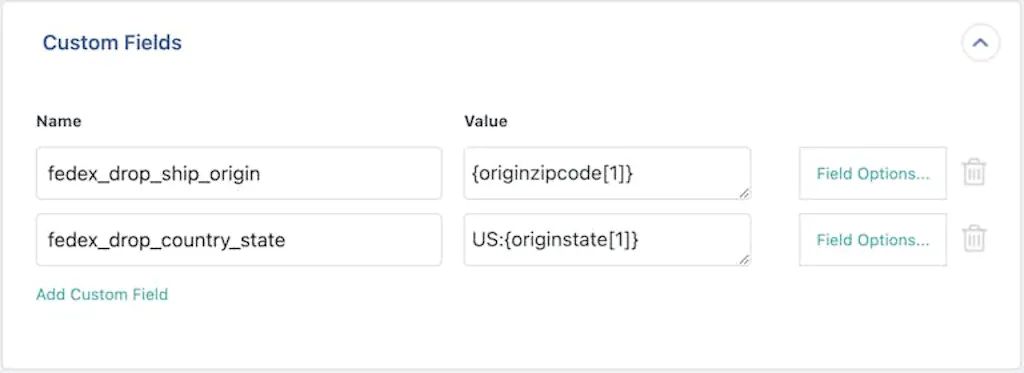
- You might have set up columns for fields that aren’t present in the WooCommerce Add-Ons metabox, or any metabox. For example, we had to set the Origin Zip Code and Origin State so that the FedEx Drop Shipping plugin could correctly calculate shipping. In cases like that, you must find what the metadata key is and plug it into the Custom Fields metabox. (This is separate from the Advanced Custom Fields Add-On metabox.)
- Continue until you have all the fields mapped from the spreadsheet to the Import Template.
- Check the box to Save settings as a template and name it something like Products . That way, if you ever need to delete the import and recreate it, you don’t lose everything you’ve done.
- Continue to the next screen and Run Import .
Product Imports: A Necessary Evil
While importing products to WooCommerce isn’t as straightforward as we’d like, it’s something that still has to be done. For larger online storefronts, importing products manually simply isn’t viable.
If you follow along with our guide, hopefully, everything goes well. There’s still a decent chance you’ll have to go through everything again to find something that’s causing an issue. But, don’t be disheartened. The more imports you do, the better you’ll get at it.